Manage a resident
This page describes a resident’s complete journey in Resthome: from creation to active stay, and where to read the resident’s dependency category.
Overview
graph LR
  A[Create the resident] --> B[Stay agreement]
  B --> C[Confirm the stay]
  C --> D[Start the stay]
Two dates not to confuse
Stay start date: when accommodation billing begins (the room).
Admission date: the resident’s effective entry, when the care allowance paid by the health insurer begins.
They are often identical, but can differ — Resthome handles both.
1. Create the resident
Open the Nursing Home → Residents application.
Click New.
Enter at least: name, date of birth and gender.
Save.
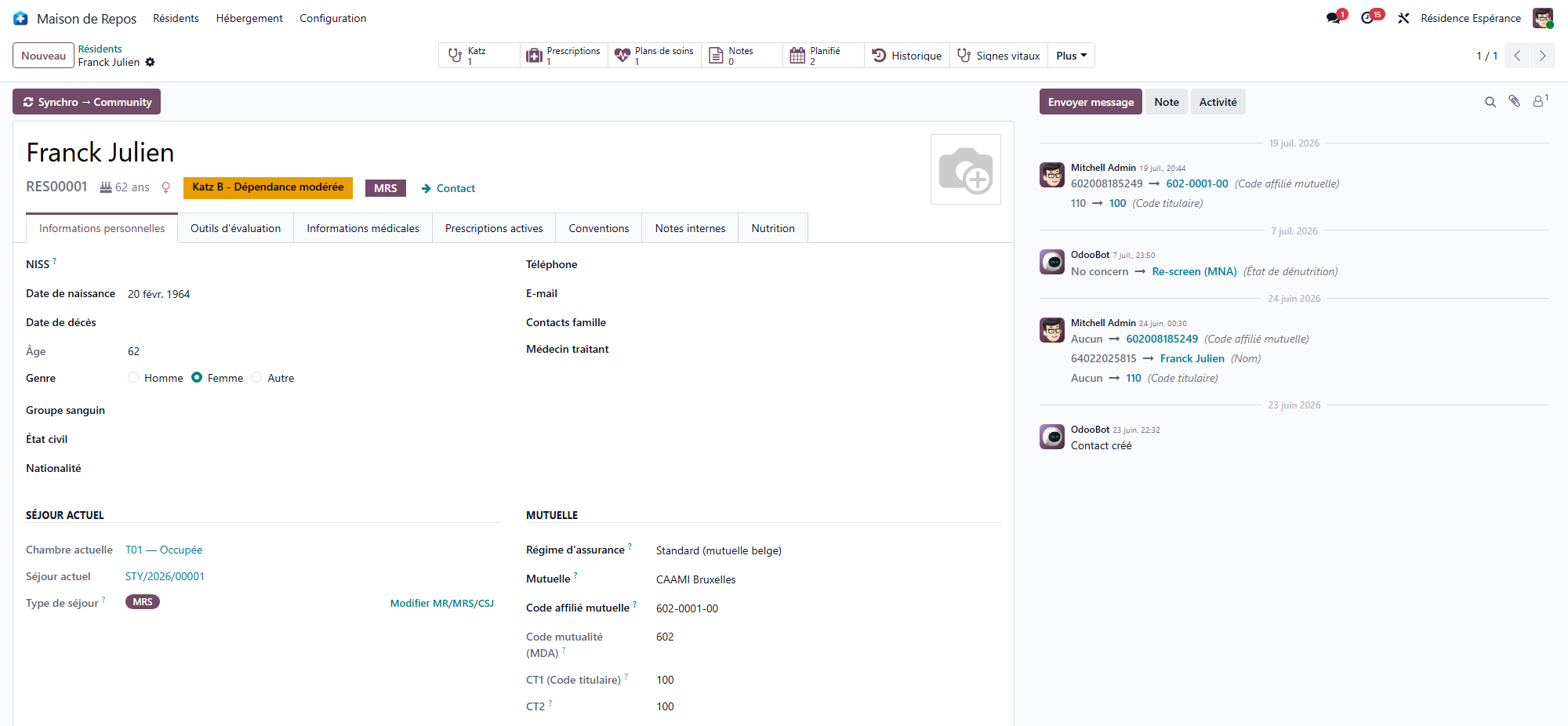
The ID Card Number field keeps the number of the identity document presented at admission. It identifies the card, which expires and is renewed — not the person.
In Belgium
The Belgian pack adds the NISS, the Health Insurance (mutualité) and the eID card reading, which fills the identity and the NISS straight from the chip. The Verify Insurability button runs the MDA check from the record and updates the mutualité and the BIM status; without a NISS, MDA and eAgreement cannot be sent — see The resident’s file in Belgium.
2. Open a stay agreement
The stay links the resident to a room and triggers billing.
On the resident record, open the Stay Agreement tab.
Click Create the first stay. The button shows only while the resident has no stay: later stays are opened by the admission, room change or transfer actions, which chain the dates.
Choose the Room (only available rooms are offered).
Enter the Stay Type — one of the sectors the home is licensed for — and the Stay start date.
Save.
The stay is then in the Draft state.
3. Confirm then start the stay
The stay goes through two steps:
Confirm — the stay becomes Confirmed (the room is reserved). The admission date and time fields appear: fill them in.
Start Stay — the stay becomes Active (the resident is actually present).
What starting the stay triggers automatically
When the stay starts, Resthome:
adds the resident to the open billing periods;
for a resident billed in advance, creates the first accommodation invoice for the admission month;
opens the month’s supplements envelope.
In Belgium
Starting the stay also creates the admission eAgreement (Annexe 7) when the NISS is present, and the stay type is the MR or MRS sector — see The resident’s file in Belgium.
Dependency category
The dependency category is what the care allowance paid by the health insurer relies on. The scale that produces it, and the way an assessment is entered and validated, come with the country pack: each country grades dependency on its own scale.
The resident’s card in the Residents list shows the category currently on file. Without a country pack, or while the resident has no valid assessment, no category is shown.
In Belgium
The scale is Katz: six criteria, categories O, A, B, C and Cd, entered from the record then confirmed and validated. Category O applies by default, with a “Katz to do” reminder on the dashboard — see The Katz assessment.
Special cases
Room change: use the dedicated action on the stay — accommodation billing is split across the two rates, without a new admission.
Absence / hospitalization: see the Billing section — an absence adjusts the billing of the days concerned.
End of stay / death: close the stay; Resthome stops billing on the correct date and prepares the credit note if needed.
In Belgium
A change of sector is the MR ↔ MRS internal transfer, entered with its own wizard that records the transfer date and updates the stay type; an absence can generate an Annexe 11 notification — see The resident’s file in Belgium.